 Level my RV
What you need
Level my RV runs on iPhone, iPad and Apple Watch. You can use it two ways:
- One device: put it on the RV floor and read the numbers there. No Bluetooth permission is needed.
- Two devices: leave one on the floor as the sensor, and watch the numbers from outside on another iPhone, an iPad or your Apple Watch. The devices talk over Bluetooth, so you don't need cell service or Wi-Fi.
The two-device setup is where Level my RV shines. You can watch the level from the driver's seat while backing onto levelers, or from the tongue jack while you crank it.
The Home screen has two big buttons:
- Level this RV is for the device that goes on the RV floor.
- Watch from here is for the device in your hand. It shows the measurements sent by the other device.


Set up your RV
To tell you how many inches (or centimeters) to raise each side, Level my RV needs to know what kind of RV you have and how big it is. You only do this once.
- On the Home screen, tap Set up your RV.
- Choose the RV type: Trailer, Fifth Wheel or Motorhome.
- Choose the unit: Inches or Centimeters.
- Spin the wheels to enter your RV's length and width. A diagram under each picker shows exactly what to measure (see How to measure your RV).
Afterwards, the Home screen shows a summary such as Travel trailer · 24 ft 6 in × 8 ft. Tap it, or the gear icon on the level screen, to change your settings at any time.
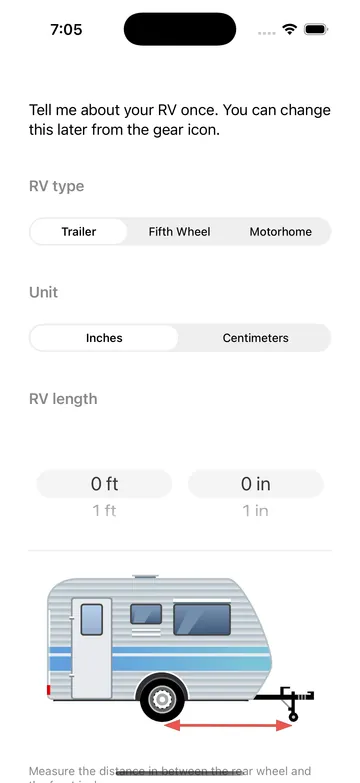

How to measure your RV
Use a tape measure. The diagrams below, also shown in the app under each picker, show exactly where to measure.
Travel trailer
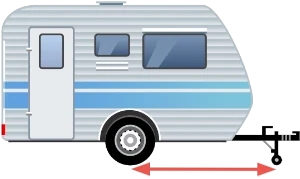
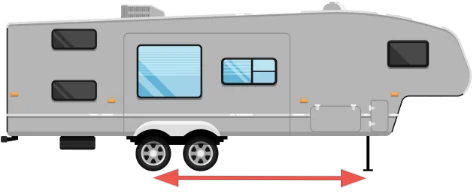
Length: measure from the wheel to the front (tongue) jack, front to back.
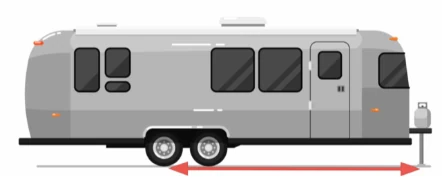
If you have a dual-axle trailer, measure from the rear wheel to the front jack:
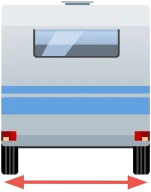
Width: measure the distance between the two tires, side to side.
Fifth wheel
Measure the same way as a travel trailer, but measure from the rear wheel to the front jack, not to the king pin.
Motorhome
Enter the vehicle's wheelbase (front axle to rear axle) as the length, and the distance between the two tires as the width.
Device offset (calibration)
A case or the camera bump can stop a phone from lying truly flat, so every measurement is off by the same small angle. Record that angle once, and Level my RV removes it from all future measurements. This step is optional but recommended for the device you put on the floor.
Open it from the Calibration row on the Home screen, or from Settings. Then do one of the following:
- At the campsite: level your RV the traditional way with a bubble level, then put the device on the RV floor.
- At home: put the device on a surface you know is level, such as a countertop you've checked with a bubble level.
Wait for the Current tilt numbers to settle, tap Record offset, and keep the device still for two seconds. The Home screen then shows Calibration done with the date.

Level a trailer or fifth wheel
Open the app on the sensor device, tap Level this RV, and lay it flat on the RV floor with the top of the phone pointing toward the front of the RV. If you're still holding it, the app shows an arrow and reminds you to place it on the floor facing forward. If you recorded the offset on a countertop, you can use that countertop instead.
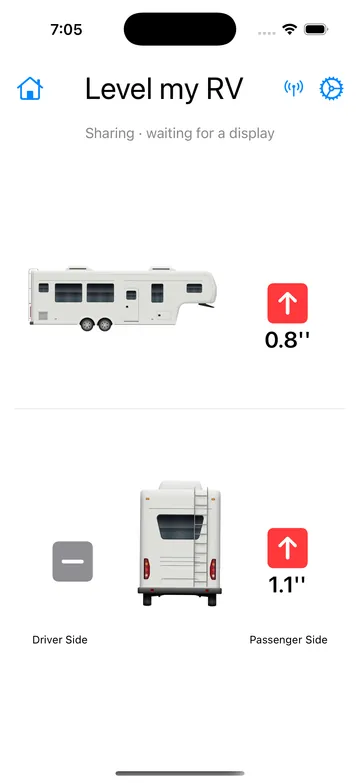
The level screen has two halves:
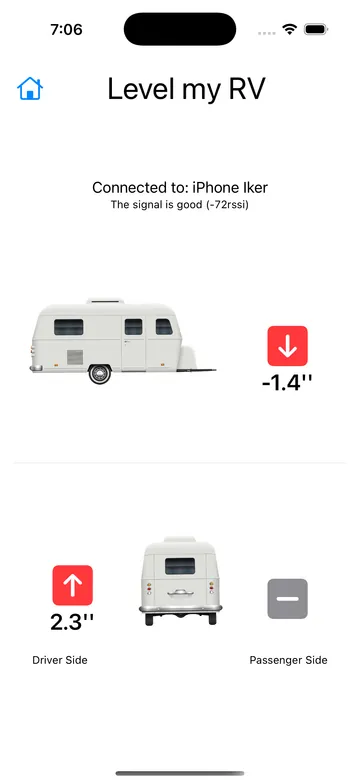
- Top: a side view with the tongue jack (front jack on a fifth wheel). An up arrow means raise the front, a down arrow means lower it, and the number tells you how much.
- Bottom: a rear view with Driver Side and Passenger Side. A red up arrow shows which tire to raise and by how much.

1. Side to side first
While the trailer is still hitched, level it side to side. The app tells you which tire to put blocks under and how high it needs to go.
- For a small, even amount (1 or 2 inches), stack one or two square blocks. They're usually about 1 inch thick each.
- For a bigger or uneven amount (for example 3.7 inches), a curved leveler works best, because you control the lift by how far you drive onto it.
This is where a second device helps most. Take it to the driver's seat, tap Watch from here, and back slowly onto the leveler until that side turns green.
2. Then front to back
Chock your wheels and unhitch. Now raise or lower the tongue jack (or the front landing jacks on a fifth wheel) while you watch the level on the device in your hand. When the front turns green, you're done.
Level a motorhome
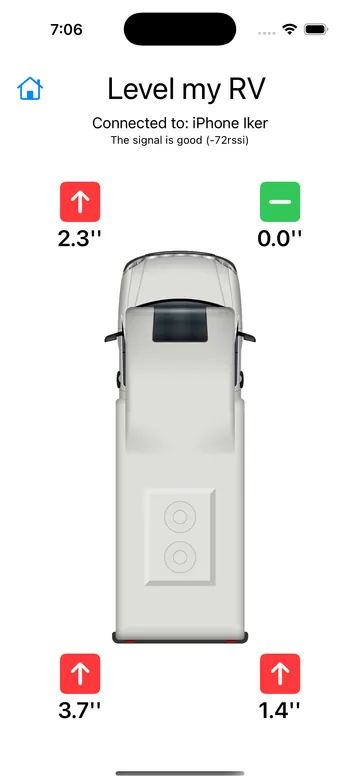
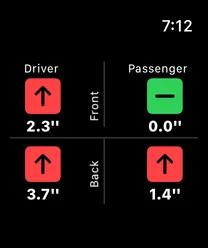
For a motorhome, Level my RV shows all four wheels from above. It finds the wheel that sits highest and sets it to 0 (shown in green). Every other wheel shows how much it needs to be raised to match.
Start with the wheel that needs the most lift, then work your way down. Drive onto blocks or use your leveling jacks while you watch the numbers on a second device or on your Apple Watch.
Watch from here & Apple Watch
On the device you're holding:
- iPhone or iPad: open Level my RV and tap Watch from here.
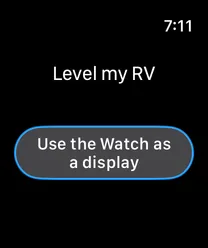
- Apple Watch: open Level my RV on the Watch and tap Use the Watch as a display.
It connects to the sensor by itself and shows the same arrows and numbers. On iPhone and iPad, the screen also shows which device it's connected to and how good the Bluetooth signal is.
If you walk out of range, or your Watch goes to sleep, it reconnects on its own when you come back. If the Watch shows Move watch or tap to wake up, just raise your wrist or tap the screen.
Troubleshooting
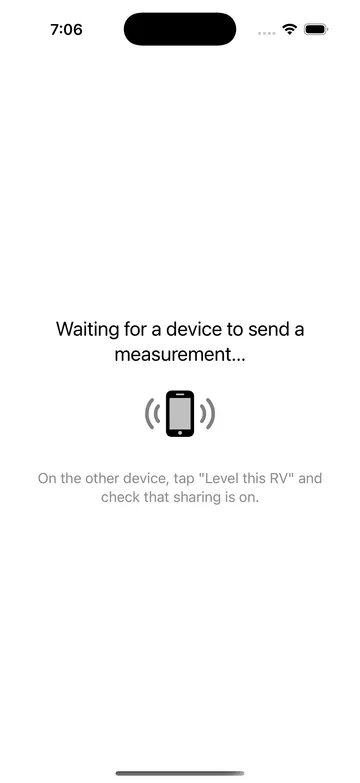
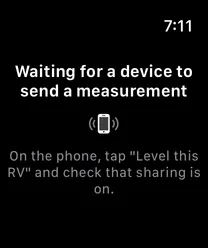
“Waiting for a device to send a measurement…”
The display device is searching for a sensor. After a few seconds it suggests checking the other device. On the sensor device:
- Make sure Level my RV is open on the Level this RV screen.
- Check that sharing is on. The status line should read Sharing · waiting for a display, not Sharing off. See Share with a second device.
- Bring the two devices closer together. Bluetooth range is typically 30 to 50 feet, and the RV's walls can shorten it.
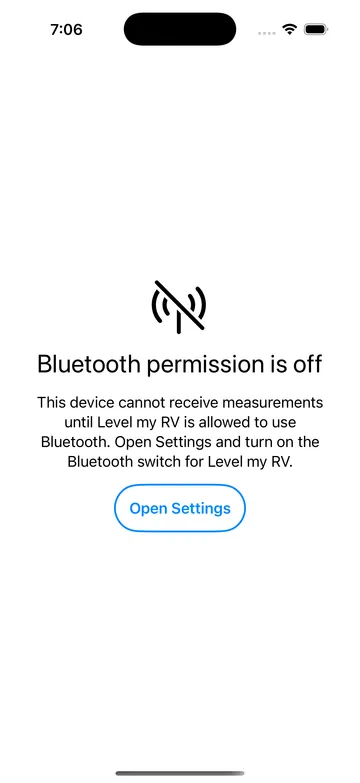
“Bluetooth permission is off”
Level my RV isn't allowed to use Bluetooth on this device, so it can't send or receive measurements. Tap Open Settings and turn on the Bluetooth switch for Level my RV. You only need this permission for sharing between devices. The level itself works without it.
“Bluetooth looks turned off on this device”
Bluetooth is switched off. Turn it on in Control Center, then come back to the app.
The numbers look a little off
- Record the device offset, especially if your phone has a case or a camera bump.
- Put the device in the same spot each time, flat on the floor, facing the front of the RV.
- Double-check the RV type and size in Settings. A length or width that's off by a lot will scale every number.
Tips
- Find a level spot first. If you're boondocking and don't need to park in an exact spot, drive around slowly with the second device in hand (or on your wrist) to find the most level ground.
- Set up at home. Enter your RV size and record the device offset before your trip, so you're ready when you pull in.
- Leveling alone? Prop the second iPhone on the dashboard, or use your Apple Watch, so you can see the level without leaving the driver's seat.
Still stuck? See Support, or send a message from the app with Feedback or Question? on the Home screen.